Happened to make a nice pscale randomizer:
“`@pscale=pow(1-ch(“spread”), 2*rand(@ptnum)-1.0);“`
Category: hou-general
Archived post by kiran_irugalbandara
sorry. its “ctrl + alt + s“
Archived post by lewis.taylor.
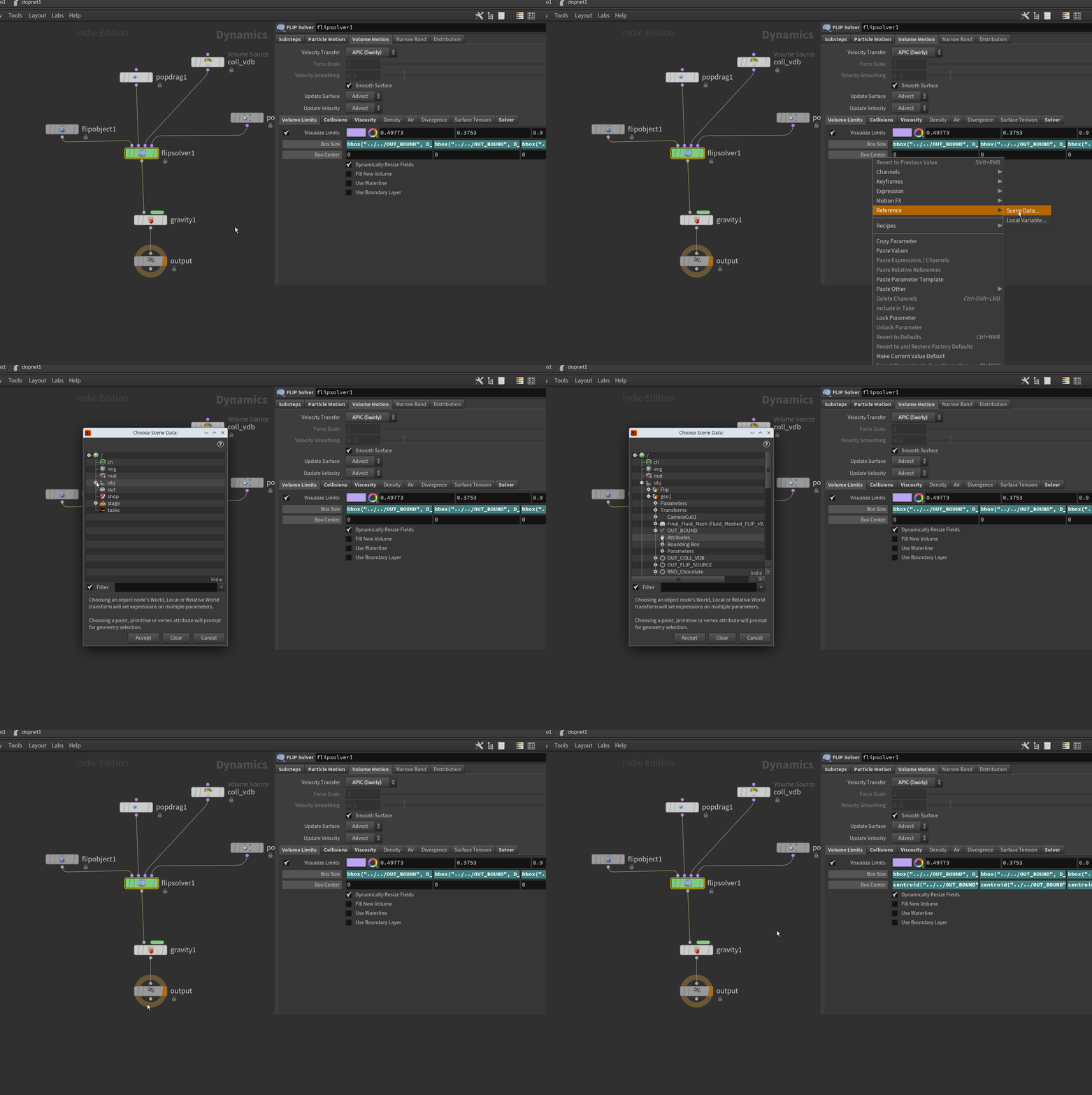
we all knew this one right?
Attachments in this post:
http://fx-td.com/houdiniandchill/wp-content/uploads/discord/20261203/03/26/reference_parms.gif
Archived post by lewis.taylor.
I’m still surprised at how many people aren’t aware of all the DOP RBD attributes you can set. For a full list, this sheet is more succinct than the Docs. gist.github.com/iinfin/2caf4e2ccb2545477670e88ddacee1e2
Archived post by jim.meston
Attachments in this post:
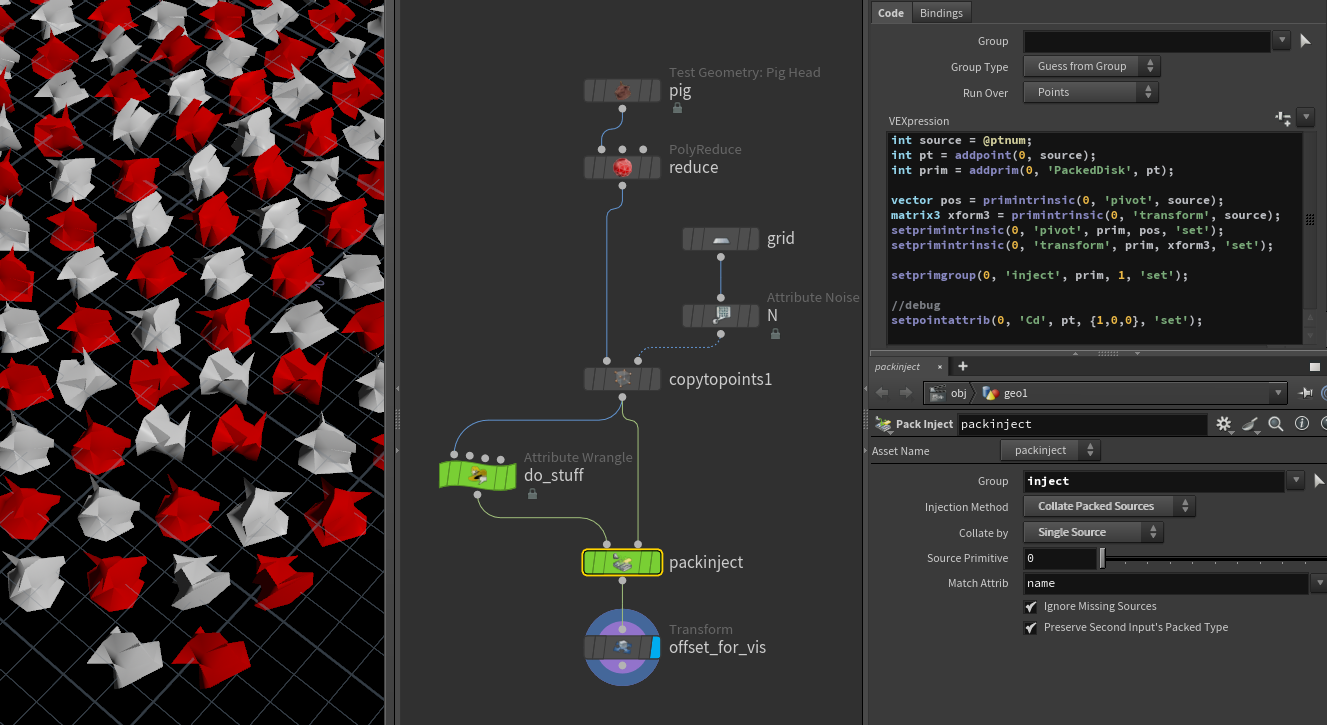
http://fx-td.com/houdiniandchill/wp-content/uploads/discord/20262501/29/26/image.png
Archived post by shadeops
Prior to Houdini 21, when ever you installed an HDA to your hip, `hou.hda.installFile()`, it would internally run the `dsreload` hscript command which rebuilt all the shelves and toolbars. Which for one HDA isn’t expensive. But this would happen for every HDA installed, and the more HDAs you installed the longer it would take. So they added a hou.hda.installFiles() as a way to batch it, which triggers a single `dsreload` at the very end. Internally when loading a hip the same thing would happen, so they changed the hip file loading to batch load them as well.
Archived post by toadstorm
i don’t think @lcrs (good lewis) posted this here but this is cool as hell github.com/lcrs/_.hips?tab=readme-ov-file#readme
wish i understood, like, any of it
Archived post by reinholdr
Calculate how much time artists are wasting on waiting for Houdini to open. Money is the only thing that gets the attention of the decision makers
The `hotl` command line utility has a flag to merge any number of otls into a single otl file. For dev work we work locally on otl files that are split per hda type and when the package is released the `hotl -m` command merges them into a single file
Archived post by mattiasmalmer
Useful trick for filtering 3D tracked cameras:
“`
/* SMOOTHCAM
turn on constraints on your camera. add a constraint network (green squiggle button)
jump into the constraintnetwork. drop a “TransformWrangle and paste this code. press the create spare parameters button.
set the targetdistance to somwhere a ways away from the camera usually somwhere in the middle of your 3d tracked pointcloud enable the orange outputflag on the tranwsformwrangle
connect the getworldspace to input 0 of the wrangle.
drop a Filter set common/units to frames and perhaps something like 15 frames filterwidth and a couple of passes.
connect the filtered version of getworldspace to input1 on the wrangle
on the getworldspace set to ../.. and make sure its channel range is set to “use full animation range” or even longer to get good “ends” on your filter
remember to extend your cam animation with plausible slopes to get good filtering */
chopTRS c0 = c->fetchInput(0); chopTRS c1 = c->fetchInput(1);
matrix m0 = c->fetchInputMatrix(0); matrix m1 = c->fetchInputMatrix(1);
float dist=chf(“targetdistance”);
vector source=set(0,0,0)*m1; vector target=set(0,0,-dist)*m0; vector up=set(0,10,-dist)*m0;
up=normalize(up-target);
matrix3 orient=lookat(source,target,up); matrix TM=matrix(orient); vector rot=cracktransform(0,0,1,0,TM);
// Set transform @t = source; @r = rot;
“`
this helps by filtering the position of the camera but making sure that the pointing of the camera is unaffected at the target point distance so none of your position jitter ends up shaking your 3d track.
a classic use case is if an object is supposed to be really close to the camera but most of your tracking dots are some ways away.
Attachments in this post:
http://fx-td.com/houdiniandchill/wp-content/uploads/discord/20254910/24/25/houdini_HrPUCSdRn5.mp4
Archived post by mysterypancake
for `mat3`, & isn’t required because `mat3` is an array of vectors (`fpreal3[3]`) arrays are passed as pointers to the first element, so `mat3` is already a pointer type
this isn’t true for `mat2` and `mat4` though, since they are vector types
i started working on an opencl page today, will add more examples/sections later. it’s missing a lot of basic info at the moment github.com/MysteryPancake/Houdini-OpenCL pls abuse me if i made any horrible mistakes